Home Assistant Experience
The RaspyRFM panel is bundled with the integration and appears in the
Home Assistant sidebar after you add a RaspyRFM config entry. The panel
is implemented as the raspyrfm-panel LitElement component and talks to
Home Assistant exclusively through the websocket commands documented in
Home Assistant Components.
Control strip
A row of Material Web Components at the top of the panel exposes the core learning controls:
Start learning – calls
raspyrfm/learning/startand resets the in-memory signal buffer.Stop learning – calls
raspyrfm/learning/stopand closes the UDP listener created by the backend.Refresh devices – pulls the current device list via
raspyrfm/devices/listand updates the entity cards without reloading the page.Reload mapping – refreshes the optional signal metadata with
raspyrfm/signals/map/list. When the mapping API is unavailable the panel shows a non-blocking error banner.
Captured signals card
Signals arriving through the learning pipeline are rendered inside the Captured signals card. Each entry displays the raw payload, timestamp, source address, and action buttons that populate the device creation form. When the classifier recognises a fingerprint the card highlights the suggested entity type and available actions, and a one-click shortcut applies the template to the form.
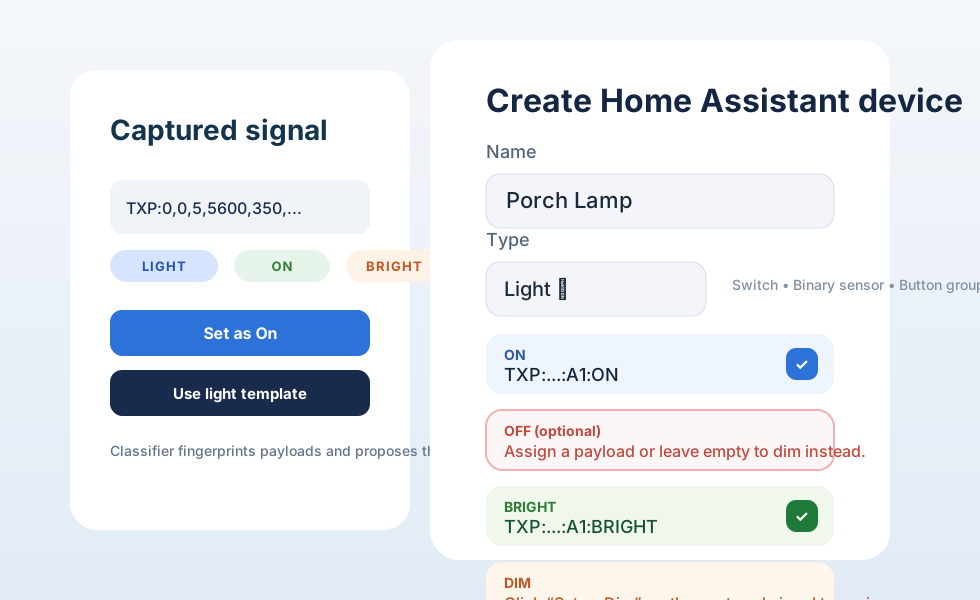
Selecting Set as ON/OFF/trigger copies the payload into the relevant field of the Create Home Assistant device card.
Create Home Assistant device
The form on the right converts captured payloads into Home Assistant
entities. The type selector now includes switches, binary sensors,
lights, button groups, and a universal receiver. Each type defines the
required actions and optional extras (for example bright/dim for
lights). Button and universal devices allow you to add arbitrary actions
before assigning payloads. Submitting the form calls
raspyrfm/device/create and automatically refreshes the device list and
signal mapping state.
Signal mapping workspace
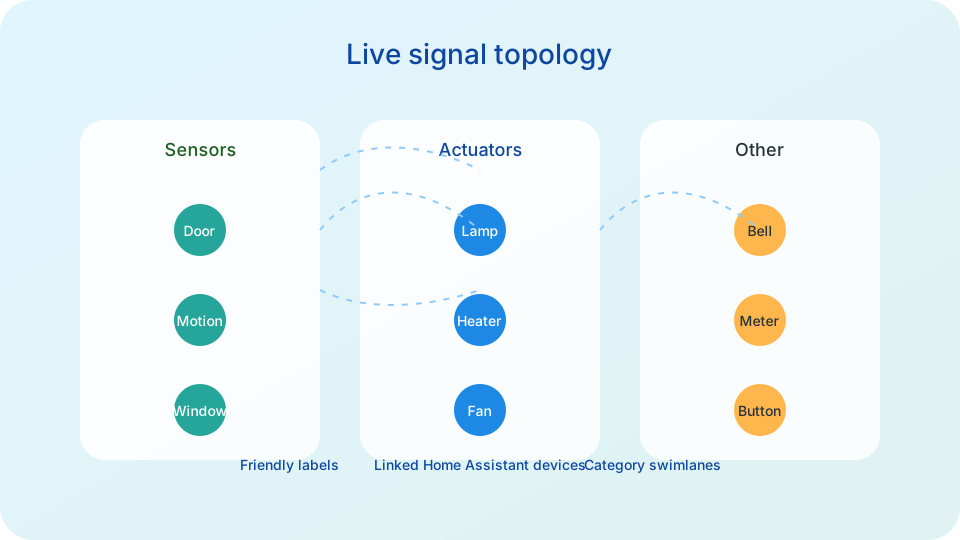
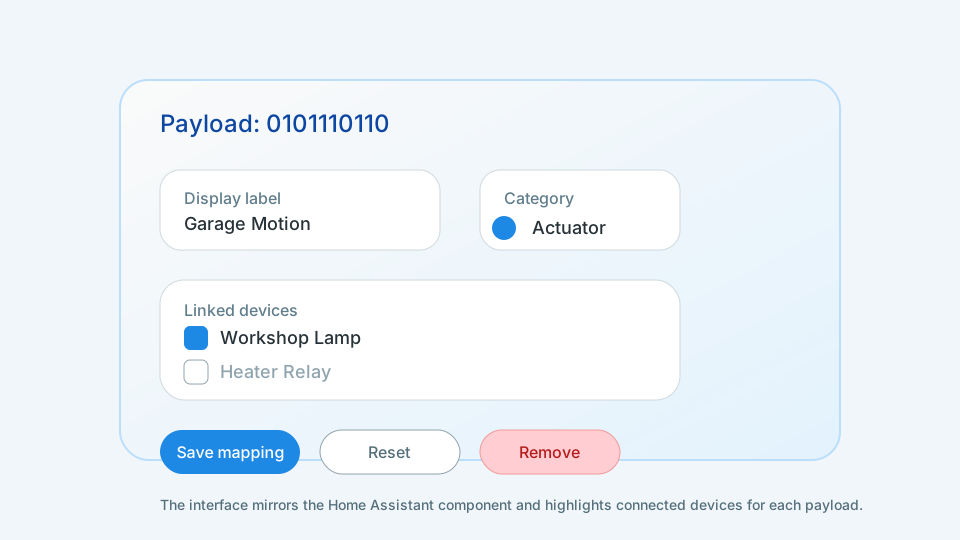
The mapping workspace turns the raspyrfm/signals/map/* websocket API
into an interactive editor. Every payload is assigned to one of three
categories—sensor, actuator, or other—and can optionally link
back to stored devices. The LitElement component keeps track of pending
changes and only persists them when you press Save mapping.
Device inventory
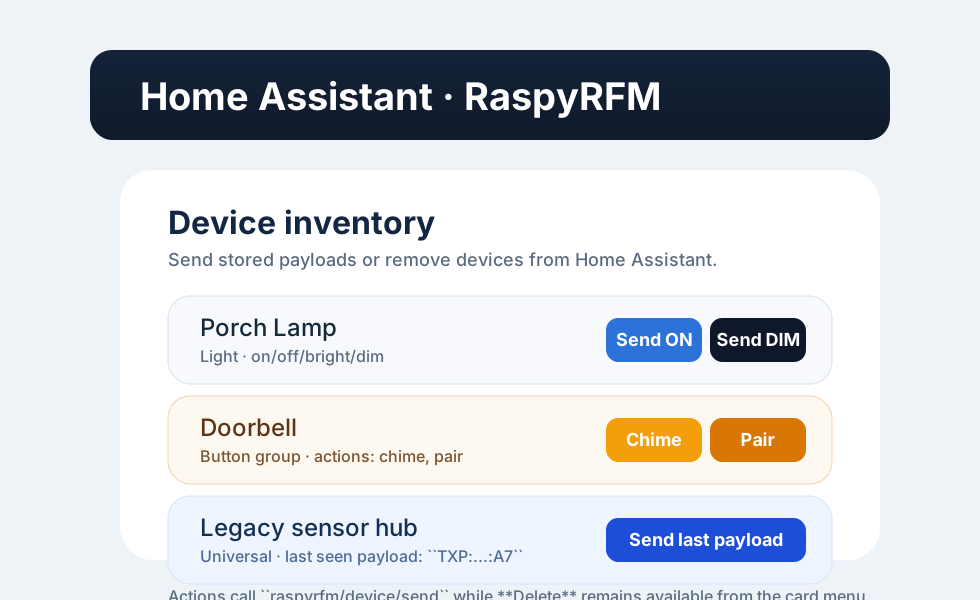
Configured devices are listed in a dedicated card at the bottom of the
panel. Each entry shows the stored payloads, exposes a Send button for
every action via raspyrfm/device/send, and mirrors the state of the Home
Assistant entities created by the integration. Universal devices highlight
their actions alongside the last payload seen so you can replay legacy
signals without switching to the developer tools.
Styling
The panel ships with custom CSS that adopts Home Assistant’s typography
and card spacing while introducing rounded cards and subtle gradients for
signal groupings. The stylesheet lives alongside the Sphinx theme
in docs/source/_static/raspyrfm.css and is referenced from the
Furo theme configuration so the GitHub Pages site mirrors the in-app
appearance.