RaspyRFM Hardware Installation Guide
This tutorial walks through every step required to attach a Seegel Systeme RaspyRFM or RaspyRFM Twin module to a Raspberry Pi and make the gateway available to Home Assistant. It covers three supported deployment options:
a Raspberry Pi running Home Assistant OS,
Home Assistant Container (Docker) on Raspberry Pi OS, and
a classic Raspberry Pi OS + raspyrfm-client gateway that exposes Home Assistant to your 433/868 MHz devices over the network.
The steps were assembled from the manufacturer’s hardware notes and battle tested against current Home Assistant builds so that you have a single self-contained reference. Follow the sections in order—each includes visual checklists, shell commands, and verification tips.
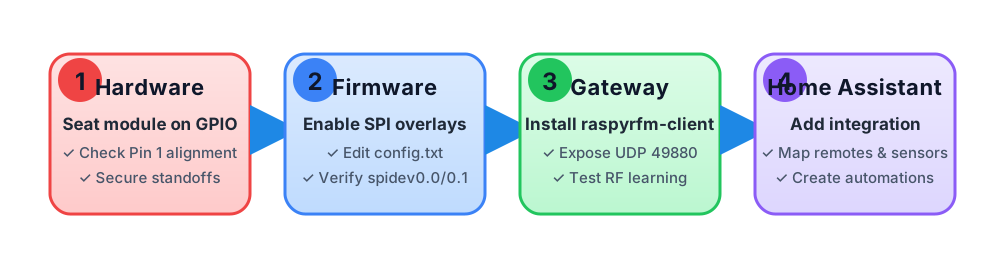
Four high level milestones keep the installation on track.
Prerequisites
Raspberry Pi 3B/3B+/4B (2 GB RAM or higher recommended)
RaspyRFM or RaspyRFM Twin add-on module
16 GB (or larger) microSD card and reader
Reliable 5 V / 3 A Raspberry Pi PSU
Ethernet (preferred) or Wi-Fi with internet access
Computer with Raspberry Pi Imager (Windows/macOS/Linux)
Optional: USB-TTL serial console cable for first boot diagnostics
Bill of materials
Component |
Notes |
|---|---|
Seegel Systeme RaspyRFM II |
Single radio (433 MHz) board with 10-pin IDC connector and onboard SMA antenna jack. |
Seegel Systeme RaspyRFM Twin |
Dual-radio daughter board. Radio A ships tuned to 433 MHz while radio B covers 868/915 MHz. Each radio has its own SMA connector and can be selected in software. |
2×20 (40-pin) stacking header |
Included with most kits. Ensures the RaspyRFM module clears the Pi’s USB/Ethernet connectors. |
433 MHz λ/4 whip antenna |
Screw into the SMA connector marked |
Standoffs + screws |
Keep the module parallel to the Raspberry Pi and avoid stress on the GPIO header. |
Step 1 – Prepare the hardware
Disconnect power from the Raspberry Pi. The RaspyRFM must only be seated while the board is unpowered to avoid damaging the transceiver.
Identify pin 1 on both the Raspberry Pi and the RaspyRFM PCB. On the Pi, it sits next to the corner closest to the microSD slot and is marked by a square pad. The RaspyRFM uses an IDC connector with a small triangle or
1silkscreen.If you are installing the Twin module, fit the supplied 2×20 stacking header onto the Raspberry Pi first. This raises the RaspyRFM so that both SMA connectors clear the Pi’s USB/Ethernet ports.
Place the RaspyRFM over the GPIO header and press straight down until the IDC connector is fully seated.
Fasten the included standoffs to prevent vibration from working the board loose.
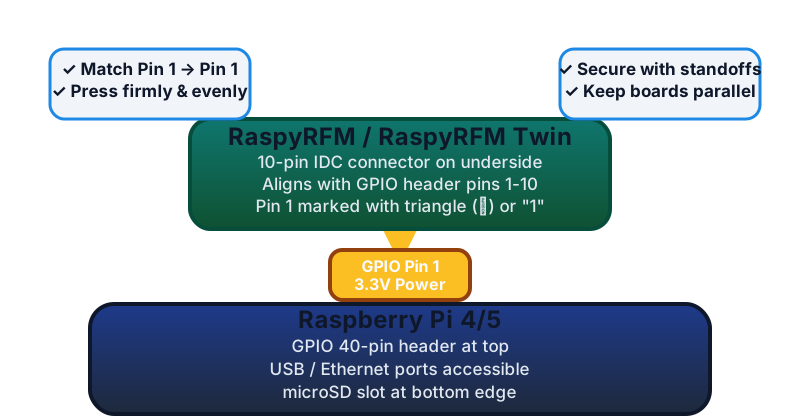
Align pin 1 on the RaspyRFM IDC connector with pin 1 on the Raspberry Pi header before seating the board.
Step 2 – Antennas and jumpers
Screw the 433 MHz antenna onto the SMA connector labelled
A.For the Twin module, attach the 868/915 MHz antenna to connector
B.Confirm the slide switch next to radio
Ais in the ASK/OOK position when targeting 433 MHz mains sockets and doorbells. Move it to FSK for RFM69-based sensors. Repeat for radioBif used.Leave the
JP1/JP2jumpers at their factory position (3V3) unless you have a documented reason to power the radios from an external supply.
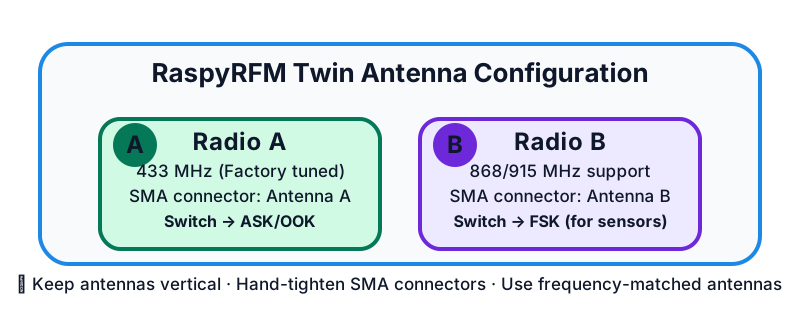
Antennas A and B line up with radio A (433 MHz) and radio
B (868/915 MHz). Keep the whips vertical for best range.
Step 3 – Enable SPI support
The RaspyRFM communicates via the Raspberry Pi’s SPI0 controller, which must be
enabled in config.txt:
Insert the microSD card into your computer.
Open the
config.txtfile on the boot partition and ensure the following lines are present (add them if necessary):dtparam=spi=on dtoverlay=spi0-2cs
The
spi0-2csoverlay (or the Raspberry Pi OS default configuration withdtparam=spi=onalone) keeps both chip select lines enabled so the Twin module can expose two radios. Avoiddtoverlay=spi0-1cs—it disables the second chip select and prevents/dev/spidev0.1from appearing.Save the file and safely eject the card.
Reinsert the microSD card into the Raspberry Pi and connect power.
After the Pi boots, confirm that
/dev/spidev0.0and/dev/spidev0.1exist:ls /dev/spidev0.*
You should see both chip selects. The Twin module uses
spidev0.0for radioA(433 MHz) andspidev0.1for radioB(868/915 MHz).
Home Assistant OS workflow
The official Home Assistant OS images can drive the RaspyRFM hardware directly. Carry out the following tasks in order.
Flash the operating system
Start Raspberry Pi Imager and choose Home Assistant OS → Raspberry Pi → your board model.
Select the microSD card and click the cog icon to pre-configure Wi-Fi (if needed), hostname, and SSH key.
Write the image and eject the card when the imager finishes.
First boot and onboarding
Insert the microSD card, connect Ethernet (recommended), and power up the Pi.
Wait 20 minutes for the initial provisioning, then open
http://homeassistant.local:8123in a browser to complete the onboarding wizard.
Expose the SPI interface to the supervisor
In the Home Assistant UI, install the Terminal & SSH add-on from the Official add-ons repository.
Open the add-on web terminal and run
loginto drop into the host OS shell.Verify the boot flags:
sed -n '1,120p' /mnt/boot/config.txt | grep -E 'dtparam=spi|dtoverlay'
Adjust the file with
nanoif the SPI options are missing, then runha host reboot.
Deploy the RaspyRFM gateway
Home Assistant OS runs on an isolated system. You need to install the gateway software that will communicate with the RF hardware. There are two options:
Option A: Using the RaspyRFM connair gateway (Recommended)
From the host shell (accessed via Terminal & SSH add-on with
logincommand), install git and Python:apk add git python3 py3-pip
Clone and set up the RaspyRFM gateway:
cd /root
git clone https://github.com/Phunkafizer/RaspyRFM.git
cd RaspyRFM
python3 -m pip install --break-system-packages spidev
Note
The
--break-system-packagesflag is required on Alpine Linux (used by Home Assistant OS) to install Python packages system-wide.Create a service file at
/etc/systemd/system/raspyrfm.service:[Unit] Description=RaspyRFM Gateway Service After=network.target [Service] Type=simple User=root WorkingDirectory=/root/RaspyRFM ExecStart=/usr/bin/python3 /root/RaspyRFM/connair.py Restart=always RestartSec=10 [Install] WantedBy=multi-user.target
Enable and start the service:
systemctl daemon-reload
systemctl enable raspyrfm.service
systemctl start raspyrfm.service
Verify the gateway is running:
systemctl status raspyrfm.service
ss -uap | grep 49880
Option B: Manual Python gateway
You can also run the gateway manually for testing:
cd /root/RaspyRFM
python3 connair.py
Install the RaspyRFM custom integration
In Home Assistant, open Settings → Devices & Services → Integrations and click + Add Integration. Search for “RaspyRFM”—if it is not listed, install the custom component manually.
To install the custom component, open the Terminal & SSH add-on and run:
cd /config/custom_components
mkdir -p raspyrfm
curl -L https://github.com/halbothpa/raspyrfm-client/archive/refs/heads/main.tar.gz \
 | tar -xz --strip-components=3 -C raspyrfm \
    raspyrfm-client-main/custom_components/raspyrfm
Restart Home Assistant after the files are in place.
Add the integration, enter the Raspberry Pi’s IP address, keep the default UDP port (49880), and complete the config flow.
Home Assistant Container (Docker) workflow
When Home Assistant runs inside Docker on top of Raspberry Pi OS, the host OS is in full control of the hardware. You need to install the RaspyRFM gateway separately on the host.
Install the RaspyRFM gateway on the host
On your Raspberry Pi OS (outside of any containers), install the gateway:
sudo apt update && sudo apt install -y git python3 python3-pip
cd /opt
sudo git clone https://github.com/Phunkafizer/RaspyRFM.git
cd RaspyRFM
sudo python3 -m pip install spidev
Create a systemd service at
/etc/systemd/system/raspyrfm-gateway.service:[Unit] Description=RaspyRFM UDP gateway After=network-online.target Wants=network-online.target [Service] Type=simple User=root WorkingDirectory=/opt/RaspyRFM ExecStart=/usr/bin/python3 /opt/RaspyRFM/connair.py Restart=on-failure [Install] WantedBy=multi-user.target
Enable and start the gateway service:
sudo systemctl daemon-reload
sudo systemctl enable --now raspyrfm-gateway
sudo systemctl status raspyrfm-gateway
Deploy Home Assistant in Docker
Create a
docker-compose.ymlfile for Home Assistant:version: '3.8' services: homeassistant: image: ghcr.io/home-assistant/raspberrypi4-homeassistant:stable container_name: homeassistant restart: unless-stopped network_mode: host privileged: true volumes: - /opt/homeassistant/config:/config - /etc/localtime:/etc/localtime:ro
Start Home Assistant:
sudo docker compose up -d
Install the RaspyRFM custom integration
Copy the integration files to your Home Assistant config directory:
mkdir -p /opt/homeassistant/config/custom_components/raspyrfm
curl -L https://github.com/halbothpa/raspyrfm-client/archive/refs/heads/main.tar.gz \
  | tar -xz --strip-components=3 -C /opt/homeassistant/config/custom_components/raspyrfm \
     raspyrfm-client-main/custom_components/raspyrfm
Restart Home Assistant, then add the RaspyRFM integration via Settings → Devices & Services, entering
localhostor your Pi’s IP address as the gateway host.
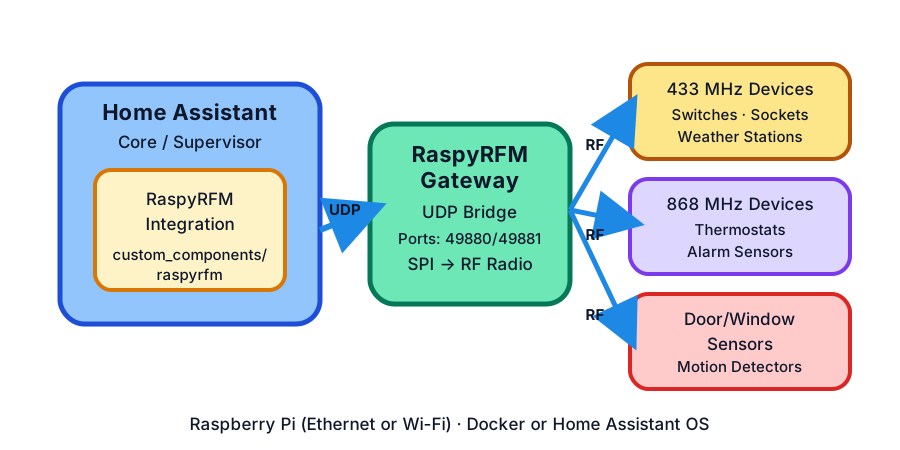
Home Assistant talks to the RaspyRFM gateway over UDP while the gateway forwards packets to the 433/868 MHz radios via SPI.
Raspberry Pi OS gateway workflow
If you prefer to keep Home Assistant off the hardware that drives the radios, turn the Raspberry Pi into a dedicated RaspyRFM gateway and let Home Assistant communicate over the network.
Flash Raspberry Pi OS Lite (64-bit), boot the Pi, and apply system updates:
sudo apt update && sudo apt full-upgrade -y
sudo raspi-config nonint do_spi 0
Install git and Python dependencies:
sudo apt install -y python3 python3-pip git
Clone the RaspyRFM gateway software:
cd /opt
sudo git clone https://github.com/Phunkafizer/RaspyRFM.git
cd RaspyRFM
sudo python3 -m pip install spidev
Create a systemd unit in
/etc/systemd/system/raspyrfm-gateway.service:[Unit] Description=RaspyRFM UDP gateway After=network-online.target Wants=network-online.target [Service] Type=simple User=root WorkingDirectory=/opt/RaspyRFM ExecStart=/usr/bin/python3 /opt/RaspyRFM/connair.py Restart=on-failure [Install] WantedBy=multi-user.target
Enable and start the service:
sudo systemctl daemon-reload
sudo systemctl enable --now raspyrfm-gateway
Verify the gateway is running:
sudo systemctl status raspyrfm-gateway
ss -uap | grep 49880
Point your Home Assistant instance (running elsewhere on the network) to the Raspberry Pi gateway via Settings → Devices & Services → RaspyRFM. Enter the IP address of your Raspberry Pi and port 49880.
Twin module radio selection
The raspyrfm-client library automatically enumerates both radios exposed by
the Twin module. Within Home Assistant the radios appear as separate gateways
(A and B). Assign devices to the radio that matches their frequency:
433 MHz wall switches, weather stations, and contact sensors → Radio A
868 MHz heating thermostats and alarm system accessories → Radio B
Use the RaspyRFM panel to run two consecutive learning sessions—one per radio— so that codes do not overlap.
Verification checklist
ls /dev/spidev0.*lists two chip select devices on the Raspberry Pi.docker ps(orsystemctl status raspyrfm-gateway) reports a running gateway with an open UDP socket on port 49880.The Home Assistant integration shows the gateway as Connected and the RaspyRFM panel lists your captured signals.
Troubleshooting tips
Gateway offline – Check the host firewall. UDP ports
49880and49881must be reachable from Home Assistant.Missing SPI device – Reapply the
dtparam=spi=onsetting and double check that no other overlay claims SPI0.Twin module 868 MHz radio silent – Confirm
spidev0.1is listed in your container configuration. Without it the gateway cannot reach radioB.Interference or poor range – Use quality SMA antennas that match the operating frequency and keep them upright. Avoid placing the Raspberry Pi in metal enclosures.
Next steps
With the gateway online you can follow the Home Assistant Components chapter to learn new RF codes, build automations, and manage devices from the RaspyRFM control panel.